
Stack




Layers, Effects, and Presets with keyboard shortcuts.
Works in Premiere Pro 2025 or later · Mac & Windows
What editors are saying about Stack
“Stack is such a time saver and a great tool to use. Simple, clean, elevated. Keep them coming!”
“Stack saves me so much time throughout my color grading workflow. It has honestly changed the way I work.”
“Installing was super easy. No extension manager needed. Worked right away. Setup easy, looks very sleek. Love it so far.”
“It's the product I was hoping for and hoping for.”
“Now I have my warp stabilizer, my auto reframe, my crop. This is exciting.”

“Saved me a huge amount of time.”

“Stack is toppp! Been a big help.”

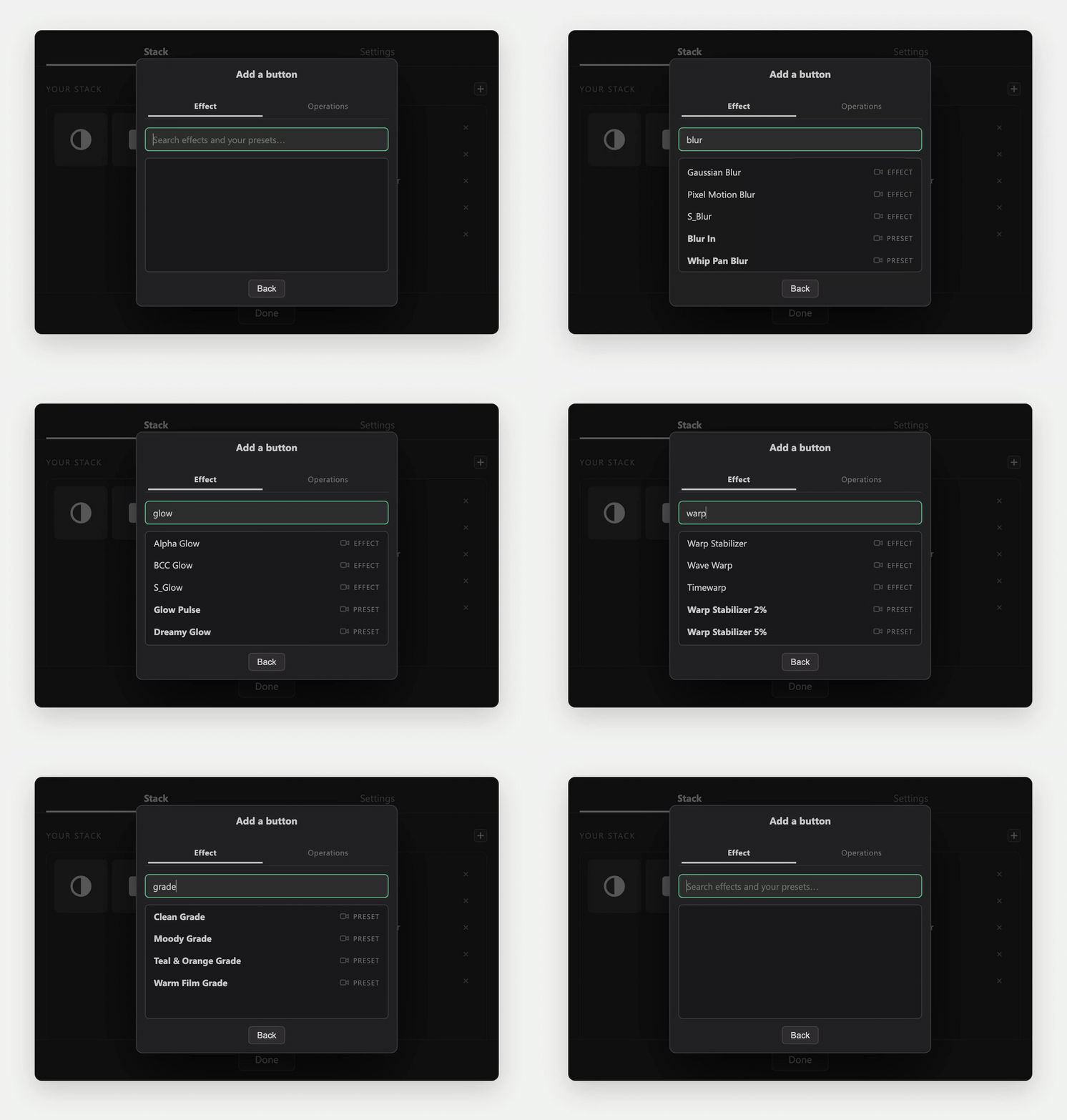
Search for any effect or preset
Every effect in your Premiere, third-party included, and every preset you’ve saved.
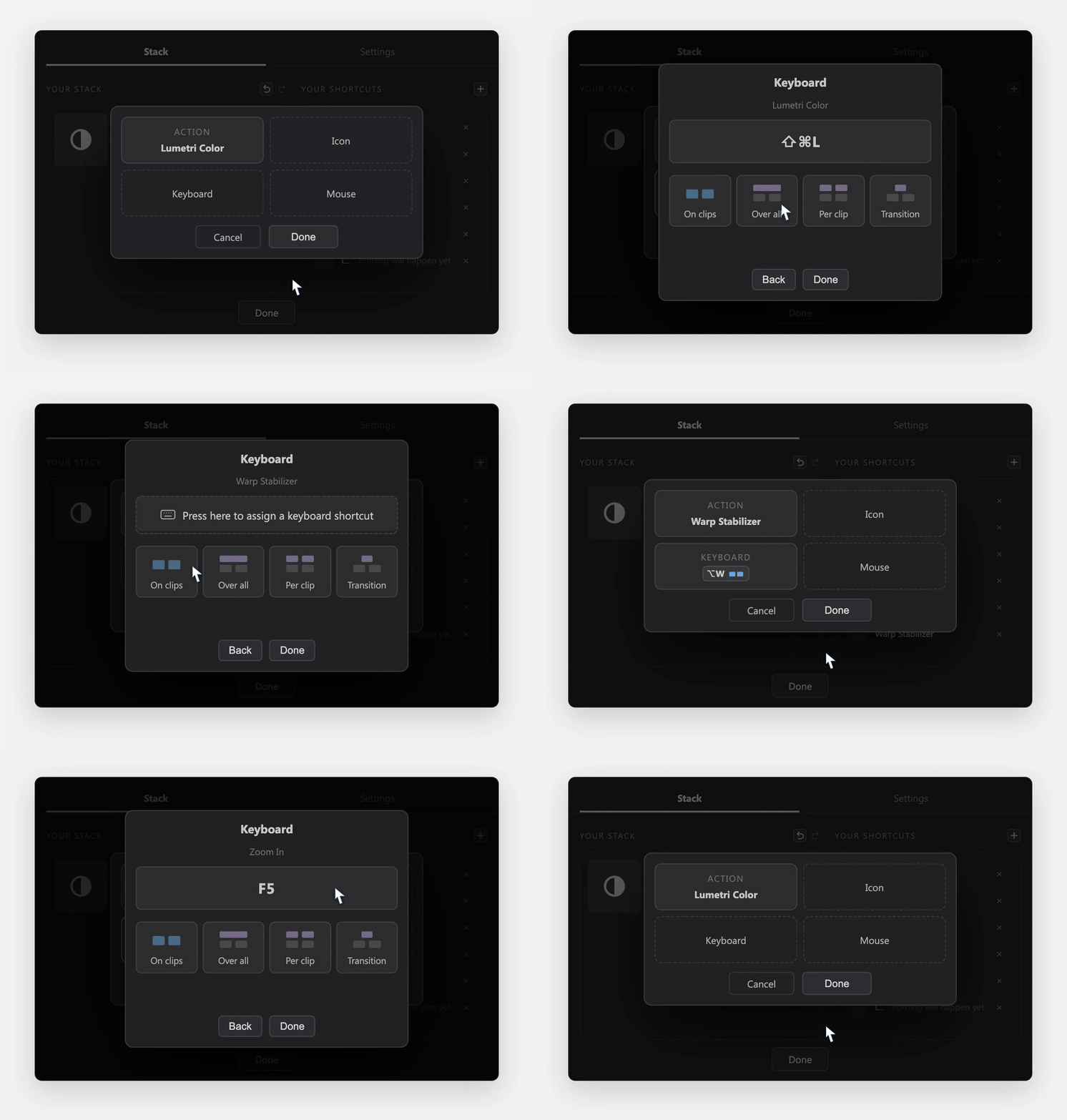
Give it a keyboard shortcut
Any key combination you like, and choose where it lands: on the clips, or as adjustment layers.
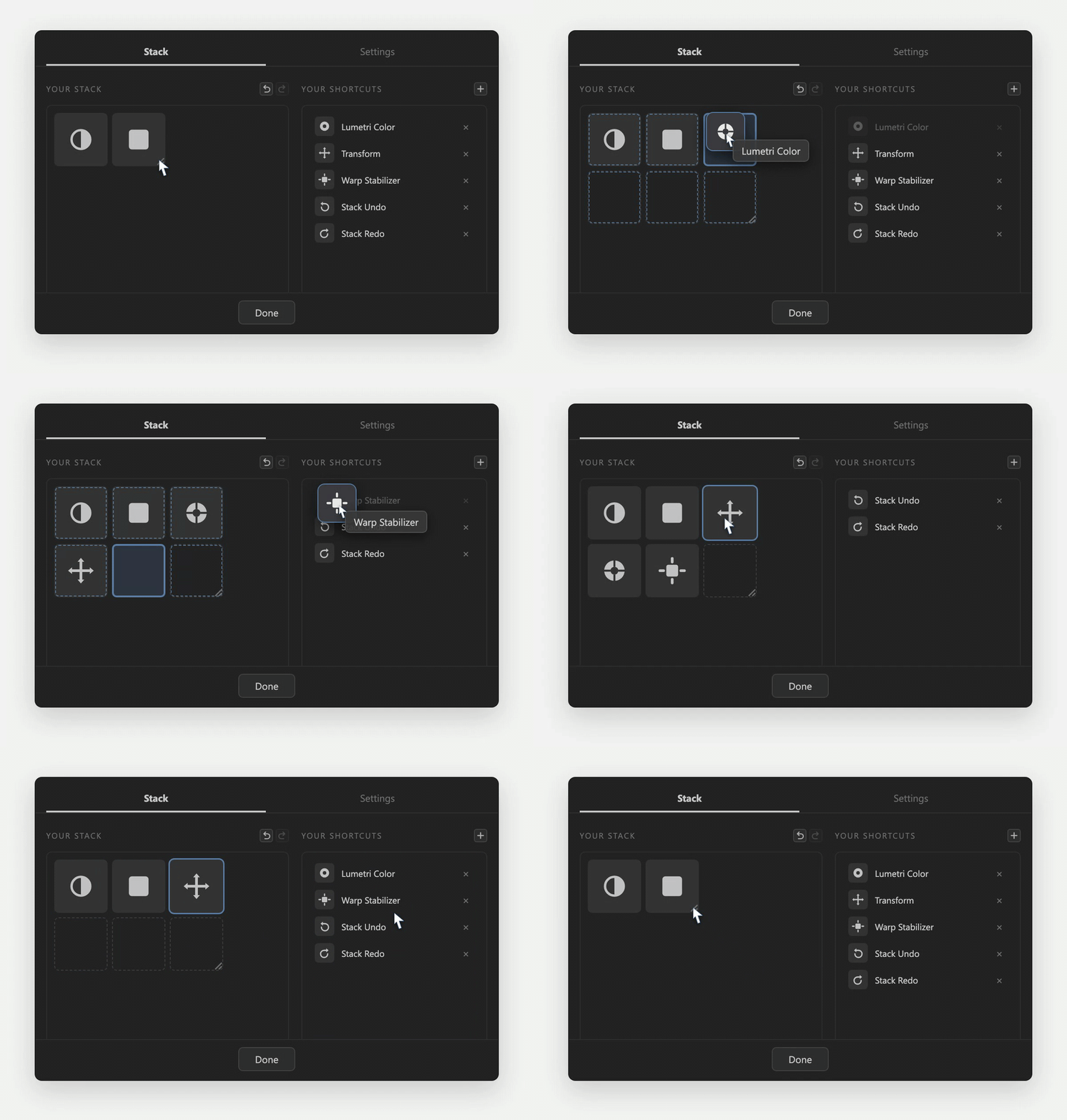
Build your own Stack
Choose the size of your Stack and arrange your shortcuts.
Apply your shortcuts with your keyboard
Press a key and the effect lands: on a clip, over a selection, or on every cut.
Watch the full overview
FAQs
How does the free trial work?
Enter your email, and I’ll send you your licence key and download link. Open it on your computer, where Premiere Pro is. You get access to all of Stack’s features for 7 days, starting from when you activate your licence key.
What happens when the trial ends?
Stack pauses until you decide to upgrade to a full licence.
What does Stack install, and what can it see?
Three small pieces: the panel you see in Premiere, the engine that edits your timeline, and a tiny helper, about a megabyte, that starts and quits with Premiere. The helper registers your key combinations with your operating system, the same way Slack and VS Code register theirs, and those presses are all it ever hears: not your typing, and nothing while Premiere isn’t in front. Stack runs without any special access. On a Mac it offers one optional Accessibility prompt, used only to notice when you’re typing so letter shortcuts can pause; decline it and Stack still works fully. Windows needs no permissions at all. The only thing that ever leaves your machine is the licence check, and the uninstaller removes everything.
What if a shortcut clashes with one of Premiere’s own?
Stack checks Premiere’s own shortcut files the moment you assign a key, and warns you if Premiere already uses that combination, naming the command. If you keep it anyway, your shortcut takes priority.
How does Stack create adjustment layers?
The first time you use a layer shortcut in a project, Stack imports one small bin of ready-made adjustment layers and color mattes, covering the common frame shapes: 16:9, vertical 9:16, square, 4:5 and 4:3, each in HD and 4K. From then on every press just stamps the right size onto your timeline instantly, matched to your sequence. They are ordinary Premiere items, the same ones you could build by hand, kept in one tidy bin.
What if I share a project with someone who doesn't have Stack?
Nothing breaks. Everything Stack puts in a project is a normal Premiere item: the adjustment layers and color mattes are standard ones sitting in a bin, and the effects on your clips are ordinary Premiere effects. Anyone can open, edit and export the project without Stack installed. They just won't have your shortcuts.
Do you offer studio licences?
Yes. A studio licence covers your whole team on one key, with two machines per editor, just like a normal licence. The more editors you need, the less each one costs, and you can add more later. Get in touch with how many editors you have and I’ll send you a price.
Stack's limitations
macOS Tahoe
Premiere Pro has widely reported problems on macOS Tahoe, and on some Tahoe Macs importing any project file is very slow. Stack sets up its adjustment layers and color mattes once per project with a small import, so the first layer in a new project can take a few minutes on affected machines. It completes on its own, shows a status message while it works, and is instant afterwards. Shortcuts that apply effects straight onto your clips don't import anything, so they are never affected. See Adobe community reports
Undo grouping
Premiere doesn’t let panels group undo steps, so each stage of what Stack builds is its own step: a single key press that builds layers across ten clips takes a run of Cmd+Z to walk back, though it always removes things cleanly and never half-removes anything. That’s why Stack has its own Stack Undo, a shortcut you can bind like any other: one press removes everything your last press created, and it only ever touches items Stack itself made. The one thing it can’t take back is an effect applied straight onto a clip, and it tells you so; Premiere’s undo covers that.
Preset reconstruction
Stack rebuilds your presets through Premiere’s scripting API. Effects, values, positions and keyframe timing all carry over. Easing curves, masks, color swatches and Lumetri curves, LUTs and Looks do not, because Premiere doesn’t expose them, so eased animation comes back linear. If your preset is mostly sliders, it will land exactly as saved. For Lumetri presets: basic grades carry over, curves, LUTs and Looks do not. Adobe’s built-in audio effects reconstruct with your exact settings. Third-party VST and AU plugins are the one real audio gap: the plugin itself lands on the clip, but its settings arrive at factory defaults, because plugins keep their state in a private format Stack can’t rebuild.
Plain letter shortcuts
You can bind a letter, on its own or with Shift. Stack steps aside while you type: in Premiere’s own text boxes and the Type tool, your letter types as normal and the shortcut waits. On Windows that protection is built in. On a Mac it needs the optional Accessibility permission; without it, pressing the letter anywhere in Premiere fires the shortcut instead of typing. One honest gap on both platforms: inside another company’s panel Stack can’t tell you’re typing, so the letter won’t appear there. Shortcuts using Cmd, Ctrl, Alt or function keys have none of this.